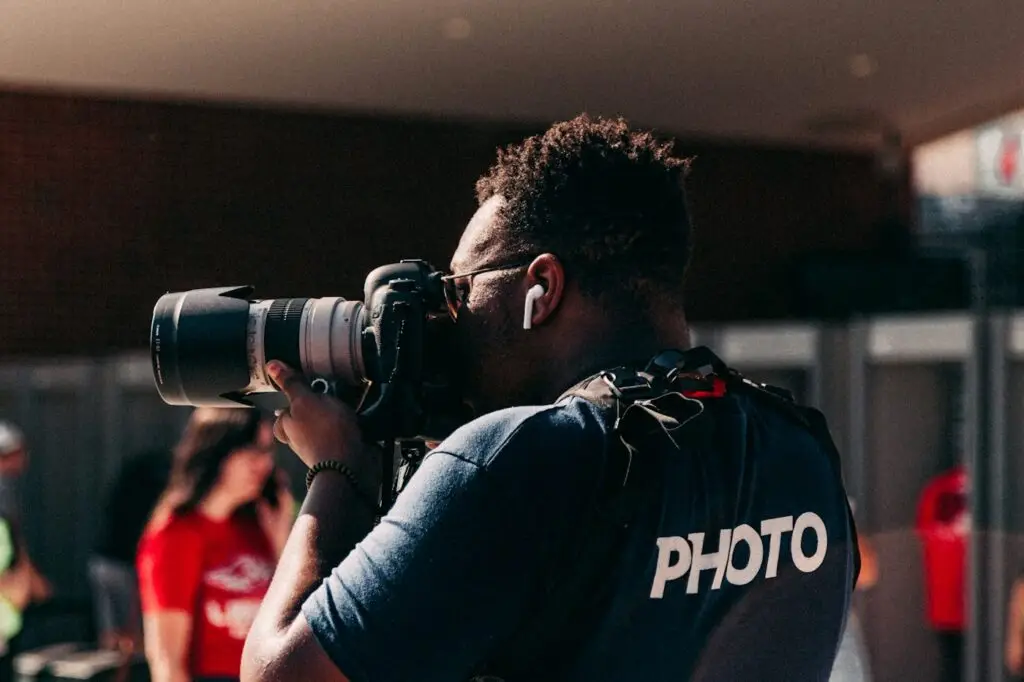
Good photos sell. They show customers your work, your team and your space better than any paragraph can. But on most small business websites, images are also the main reason pages load slowly, and slow pages lose visitors and rankings.
Image optimization fixes that. It means making your images as light as possible without making them look worse, and labeling them so search engines understand what they show. Here’s how to do it, in plain language.
Why image optimization matters
- Speed: images are usually the heaviest part of a web page. Lighter images mean faster pages, especially on phones with a weak signal.
- Rankings: Google uses page experience, including how quickly the main content of a page appears, as part of how it ranks sites.
- Customers: people leave slow sites. A fast page keeps them around long enough to call or book.
- Image search and accessibility: well-labeled images can show up in Google Images, and they make your site usable for people who rely on screen readers.
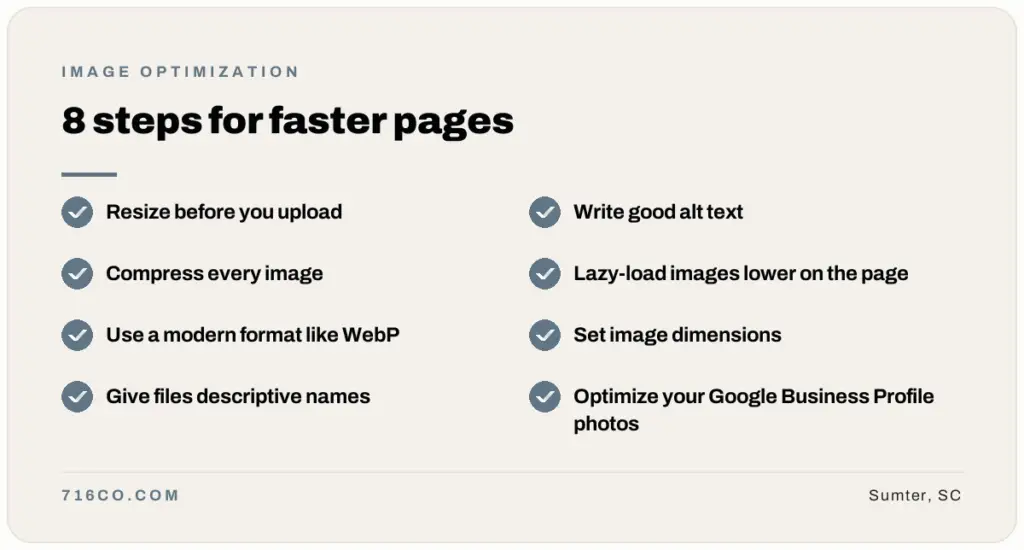
1. Resize images before you upload them
A photo straight off a modern phone or camera is often 4,000 pixels wide or more. Most websites never display an image wider than about 1,920 pixels, and many spots, like a blog card or team photo, need far less. Resize images to roughly the largest size they’ll actually appear before you upload them.
2. Compress them
Compression shrinks the file size by removing data you can’t see. A good compressed photo looks the same to the eye at a fraction of the weight. Free tools like Squoosh (in your browser) or the compression built into most image editors work well. On a WordPress site, an image optimization plugin can compress images automatically as you upload them.
3. Use a modern format
The right format makes a big difference:
- WebP is the go-to for most website photos and graphics today. It’s much lighter than JPEG at the same quality and works in every modern browser.
- AVIF is even lighter, and good optimization plugins can serve it automatically to browsers that support it.
- JPEG is still fine for photos if WebP isn’t an option.
- PNG is best saved for graphics that need a transparent background.
- SVG is ideal for logos and icons, since it stays sharp at any size.
Avoid using GIFs for anything but simple animations. They’re heavy and limited in color.
4. Give every image a descriptive file name
Rename files before you upload them. “IMG_4821.jpg” tells Google nothing. “sumter-kitchen-remodel-white-cabinets.webp” describes exactly what’s in the picture. Keep it short, use dashes between words and describe the image honestly rather than stuffing in keywords.
5. Write good alt text
Alt text is a short description of an image that screen readers read aloud and search engines use to understand the picture. Describe what’s actually in the image, as if you were describing it to someone over the phone:
- Weak: “image1” or “plumber plumbing Sumter SC best plumber”
- Better: “Plumber replacing a water heater in a Sumter home”
Purely decorative images, like background textures, can have empty alt text so screen readers skip them.
6. Lazy-load images further down the page
Lazy loading tells the browser to wait to load an image until the visitor scrolls near it, so the top of the page appears faster. WordPress does this automatically for most images. The exception is the big image at the very top of a page (your main banner or hero photo): that one should load right away, because it’s the first thing people see.
7. Set image dimensions
When a page doesn’t know an image’s size ahead of time, the text jumps around as images load, which is frustrating to read and counts against you in Google’s page experience signals. Most modern website builders handle this for you, but it’s worth checking if your pages shift while loading.
8. Don’t forget your Google Business Profile
The same rules apply to the photos on your Google Business Profile: real, well-lit photos of your work, team and location, added regularly. Those images often get seen before your website does.
How to check your images
Run a page through Google PageSpeed Insights. If it lists items like “Properly size images,” “Serve images in next-gen formats” or “Efficiently encode images,” your images are slowing you down, and the report shows exactly which ones.
Frequently asked questions
What size should images be for a website?
u003cpu003eFull-width banner images rarely need to be wider than about 1,920 pixels, and most other images can be much smaller. Aim to keep most photos well under 200 KB after compression.u003c/pu003e
Does alt text help SEO?
u003cpu003eYes. Alt text helps search engines understand your images and can help them appear in image search. More importantly, it makes your site accessible to people who use screen readers.u003c/pu003e
Can a plugin do all of this for me?
u003cpu003eA good image optimization plugin can handle compression, modern formats and lazy loading automatically. You’ll still want to resize very large images, name files well and write real alt text. Our u003ca href=u0022https://716co.com/website-maintenance/u0022u003ewebsite care plansu003c/au003e include ongoing performance work if you’d rather not think about it.u003c/pu003e
Wondering if your images are slowing you down? Request a free website audit, or see our website design plans.